Core Pages
Sign In
Use the Microsoft sign-in button to open the app.
If sign-in does not complete, close the sign-in window and try again. If the issue continues, contact IT Help: ithelp@aarsleff.co.uk or 01636 615783.
If sign-in does not complete after trying again, contact IT Help using the details above.
Home
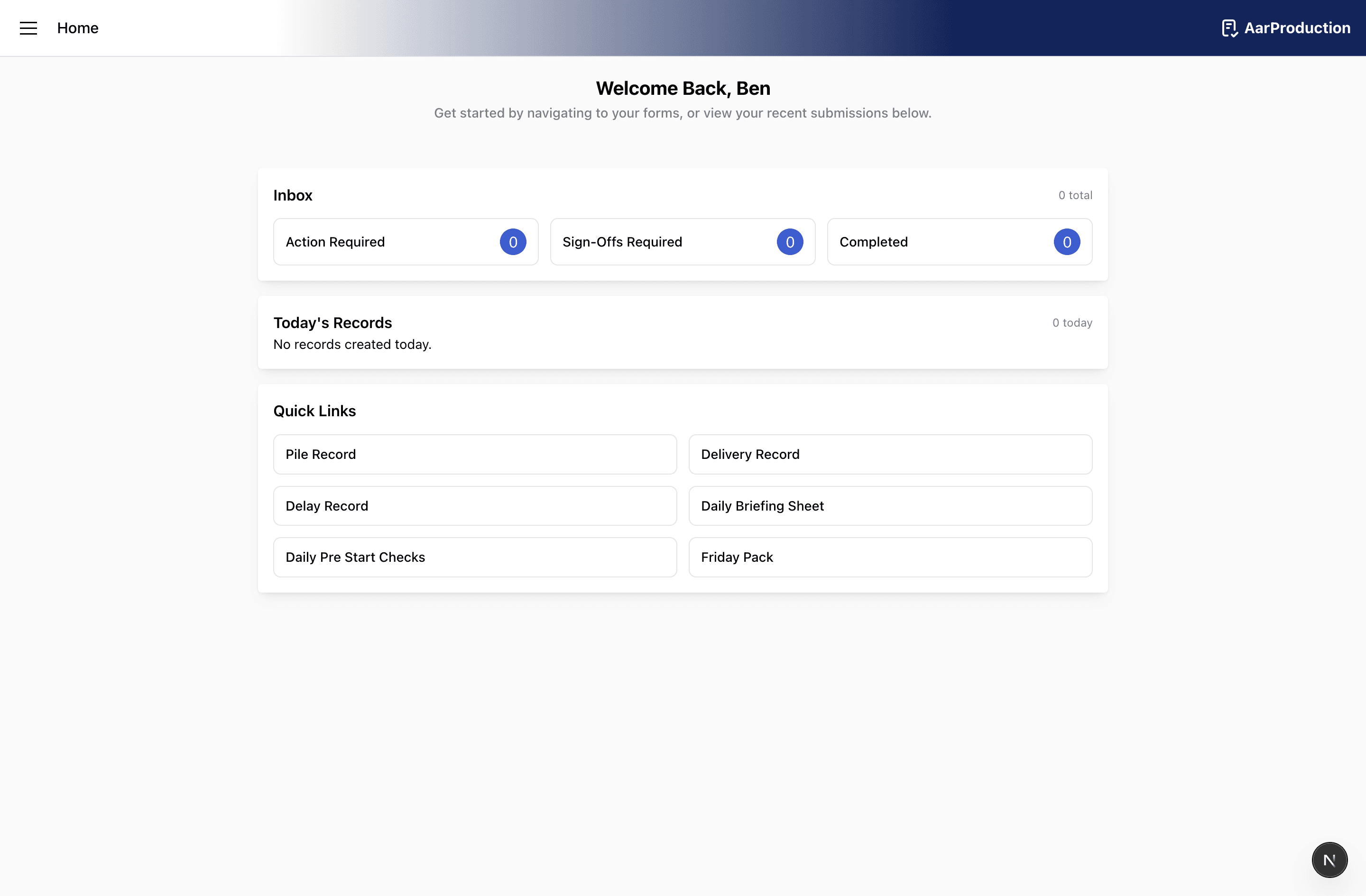
The Home screen is the main starting point for daily use.
Use it to:
- see your current Inbox totals
- check records created today
- open the most commonly used forms from Quick Links
This is the best place to start if you want a quick view of what needs attention.
Inbox
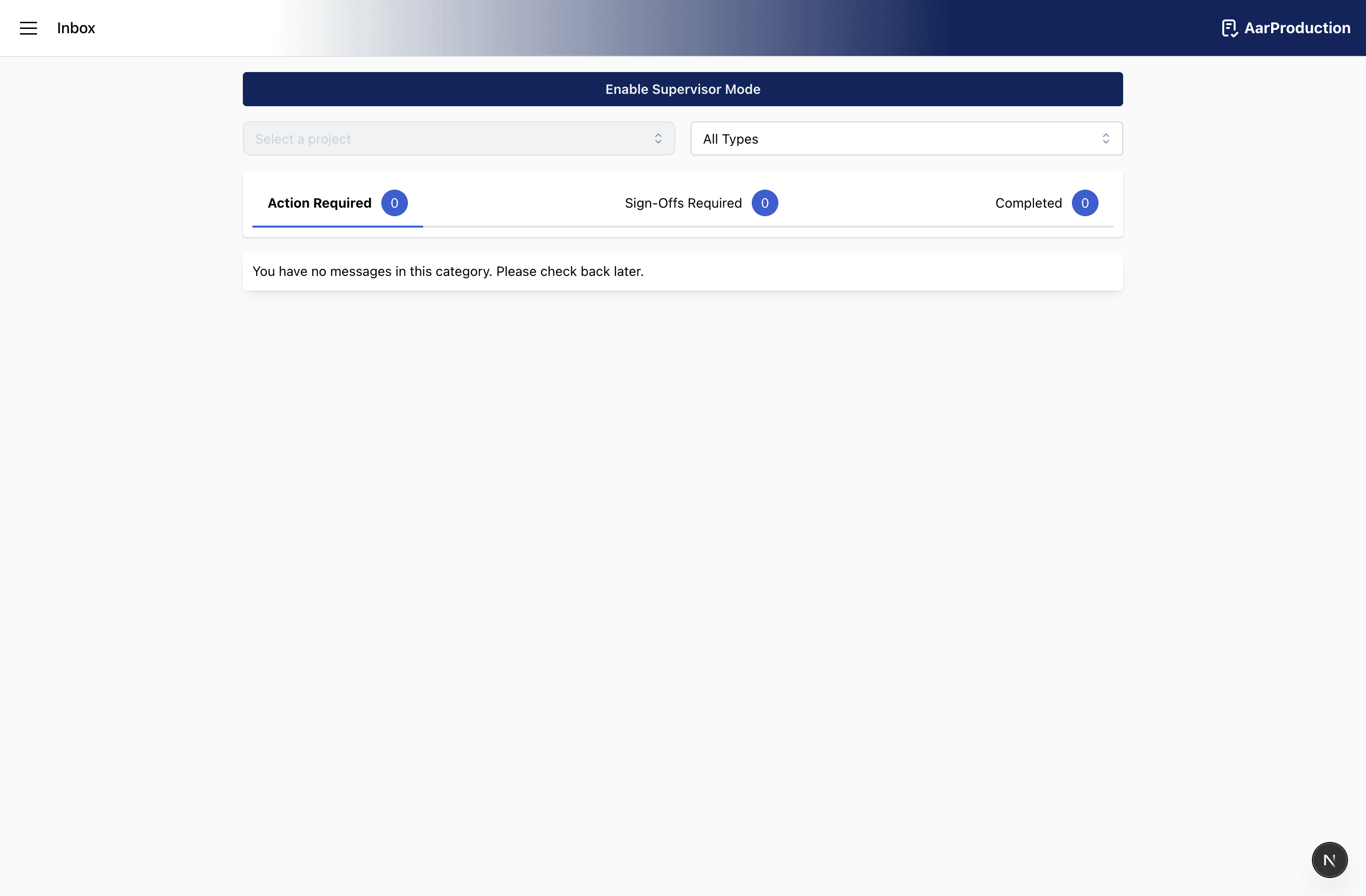
The Inbox is where you manage records after they have been started or submitted.
Use the tabs to switch between:
Action Requiredfor work that still needs input or completionSign-Offs Requiredfor records waiting for approval or final actionCompletedfor finished records
Use the filters to narrow the list by form type or project when needed.
The Inbox is especially useful for:
- finding records that still need attention
- reopening work
- checking what has already been completed
To open the available actions for a record, tap the record card in the list.
Depending on the record and its status, you may see options such as:
Viewto open the record outputResumeto continue filling in a saved or in-progress recordSign Offwhere sign-off is requiredDeleteto remove the record
Viewing A Record
Use View when you want to open the finished record output and review what has already been submitted.
Resuming A Record
Use Resume when you need to continue work on a record that has not yet been fully completed.
When resuming a record:
- check that the loaded information matches the record you intended to open
- finish any missing fields
- review the form before submitting again
Not every record type supports resuming, so some records will show View and Delete only.
Deleting A Record
Use Delete only if the record should be removed.
After selecting Delete, the app asks for confirmation. Once confirmed, the record is removed and this action cannot be undone.
Only delete a record if you are sure it should be removed. Once confirmed, the record cannot be recovered from the Inbox.
Supervisor Mode
Some users will see a Supervisor Mode button at the top of the Inbox.
Supervisor Mode is used to review records by job rather than just by the current user.
When Supervisor Mode is enabled:
- the Inbox changes to a supervisor view
- you can search for and select a job
- the record list shows records for that selected job
- the tabs change to
Today's RecordsandAll Records
Use Supervisor Mode when you need to:
- review records for a specific project
- check what has been submitted on a job
- look at the day’s records for that job
If no job is selected, Supervisor Mode will not show useful results, so choose the job first before reviewing the records.
Navigation
Use the menu to move between form groups without going back to the Home screen.
Production Formscontains the main production record screens.Friday Pack Formscontains the daily, weekly, and compliance forms.Exportscontains the Friday Pack PDF generator.Feedbackcan be used to raise issues or comments about the app.
If a page fails to load, return to the previous screen and try again. If the problem continues, contact IT Help: ithelp@aarsleff.co.uk or 01636 615783.
Feedback Button
Use the Feedback button in the side menu if you want to report a bug, explain a problem, or suggest an improvement.
To use it:
- open the side menu
- tap
Feedback - enter your name
- describe the issue or suggestion clearly
- submit the form
When writing feedback, include:
- what you were trying to do
- which form or screen you were using
- what went wrong
- anything the team should do to reproduce the issue
Use the Feedback button for app comments and improvement suggestions. If you cannot access the app or need direct help, contact IT Help: ithelp@aarsleff.co.uk or 01636 615783.